Get started with NezChat in minutes
Follow this step-by-step guide to set up your AI-powered chatbot, upload your knowledge base, and start helping customers instantly.
4 Simple Steps to Launch
Complete setup in under 30 minutes and start delivering instant, accurate answers to your customers.
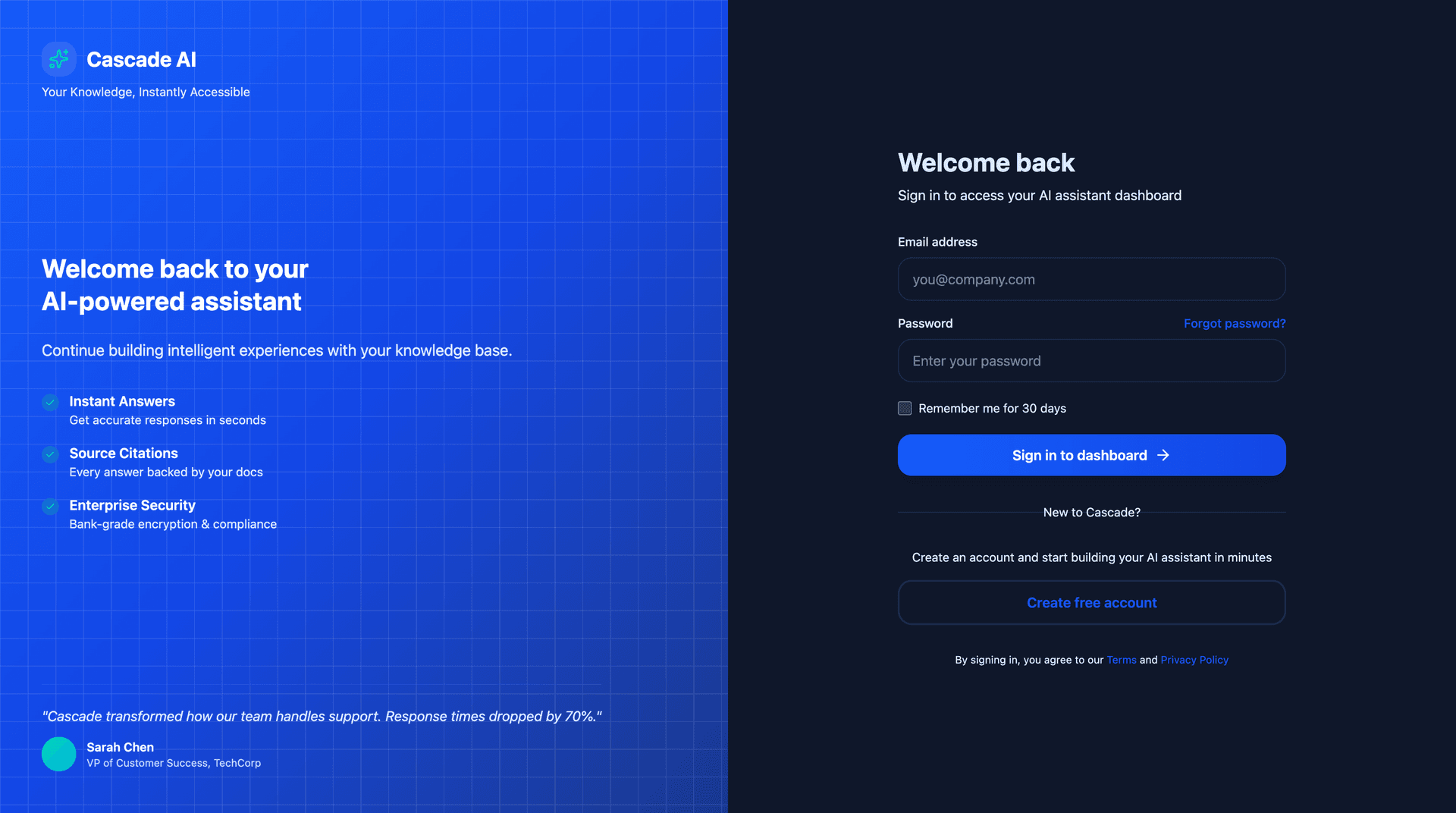
Create your account
Sign up for NezChat and create your workspace. No credit card required to get started with our free trial.
Upload your knowledge base
Add your documentation, FAQs, and support content. NezChat automatically processes and indexes your content for instant retrieval.
Screenshot coming soon
Configure your chatbot
Customize the chatbot appearance, set welcome messages, and configure behavior to match your brand and workflow.
Screenshot coming soon
Deploy to your website
Add the widget snippet to your site and start helping customers instantly. Track performance through your dashboard.
Screenshot coming soon
What you'll build
NezChat provides everything you need to create an intelligent, branded chatbot for your business.
Dashboard Overview
Monitor conversations, track performance metrics, and gain insights into customer queries.
- Real-time conversation analytics
- Message volume and response metrics
- User satisfaction tracking
- Popular questions and topics
Knowledge Base Management
Easily manage your content sources and keep your chatbot knowledge up to date.
- Autonomous whole-site crawling
- Knowledge enrichment via raw text
- Automatic content indexing
- Version control and updates
Widget Customization
Make the chatbot widget match your brand with complete customization options.
- Custom colors and themes
- Branded welcome messages
- Position and size controls
- Light and dark mode support
Embed the widget in seconds
Add this simple code snippet to your website before the closing </body> tag. The widget automatically inherits your theme and workspace configuration.
Works anywhere
Compatible with all modern websites and frameworks
Auto-updates
Widget improvements deploy automatically, no code changes needed
Fully customizable
Control position, colors, messages, and behavior via dashboard
<script
  src="https://widget.nezchat.com/nezchat-widget.umd.cjs"
  data-tenant-key="your_api_key_here"
  data-theme="auto"
  data-lang="en"
></script>
Tip: Add data-position="bottom-right" to control placement.
Launch checklist
Complete these tasks to ensure a successful deployment and maximize the value of your AI assistant.
Ensure sources are ingested
Verify that all your uploaded documents and URLs have been fully processed and indexed.
Test in Playground
Use the dashboard playground to verify the chatbot answers questions correctly before going live.
Enrich Knowledge Base
Add missing information or "Golden Questions" as raw text to cover gaps and improve accuracy.
Embed the Widget
Copy the script tag and add it to your website or platform to make the chatbot visible.
Monitor Feedback
Check initial conversation logs and user feedback to fine-tune responses.
Need help? Our onboarding team will co-pilot your first deployment and share best practices tailored to your audience. Contact us
Dig deeper with these resources
Everything you need to integrate NezChat into your product and workflows.
Ready to get started?
Create your account and start building your AI assistant today. No credit card required for the free trial.